



 sales@resultfirst.com
 +1-888-512-1890
The Complete Guide to Tracking Website Traffic in Google Analytics 4

Your website is visible in search results, and your marketing and advertising campaigns are performing well across various search environments. Now, the next important step is to know how to measure website traffic and how many people are visiting your website. Although there are various analytic tools to measure how your website is performing, if you want exact, detailed results, Google Analytics (GA4) is the most powerful and reliable tool you can choose for this purpose.
Google Analytics 4 is the latest generation of web analytics that provides a broad view of customer interactions across various search platforms and helps you optimize your SEO efforts. According to a recent report, Google Analytics is used by almost 54.49% of all websites globally, which accounts for more than 37.9 million websites. From Social Media to measuring traffic through AI platforms, Google Analytics 4 provides in-depth insights into user behavior and also helps to identify relevant partnerships with high-performing referral sites.
So, in today’s write-up, we will help you understand how to check website traffic in Google Analytics. We will also discuss some important metrics and types to track traffic in Google Analytics 4.
Let’s talk!
Why Use Google Analytics 4 for Website Traffic
Google Analytics provides detailed insights into user behavior, traffic sources, and content performance. The speciality of Google Analytics 4 is that it uses an event-driven data model that offers more accurate website traffic in Google Analytics.
- Cross-Channel Tracking: You can track users across websites and applications for a complete view of their activity.
- Custom Reports: You can build dashboards to visualize site visits in your Google Analytics report.
- Helps you better understand the audience: You can also learn about users’ geographical location and the channels they use. It helps you provide a targeted message and enhance your overall SEO strategies.
- Discover new topics: GA4 also assists in discovering new topics as people from different channels look for specific topics. You can get new content ideas by checking your traffic sources and engagement for each page.
How To Track Website Traffic Using Google Analytics
To properly understand how to measure SEO in Google Analytics, you need to use the tool and check how many people visit your website, from where they come to your website, what pages they mostly view, and how many times they have returned (retention rate)
Google offers two major types of tracking tools:
- Google Search Console: It determines your website’s performance in Google search results. It helps you know how people find your website and different ways to optimize your website for different search results.
- Google Analytics 4 (GA4): It helps you measure web traffic data and user behavior with important metrics like page views, time on page, conversions, bounce rate, etc.
To measure website traffic in Google Analytics 4, you need to:
- Log in to Google Analytics, then go to insights.
- Click on reports
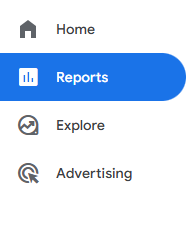
- Maximize the acquisition menu and choose “Acquisition Overview”
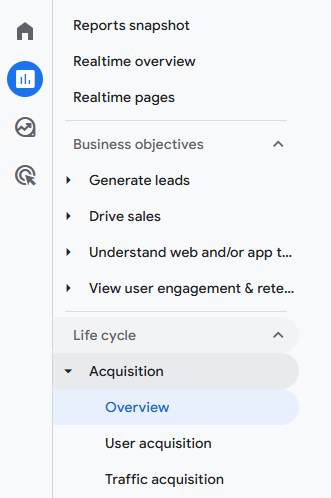
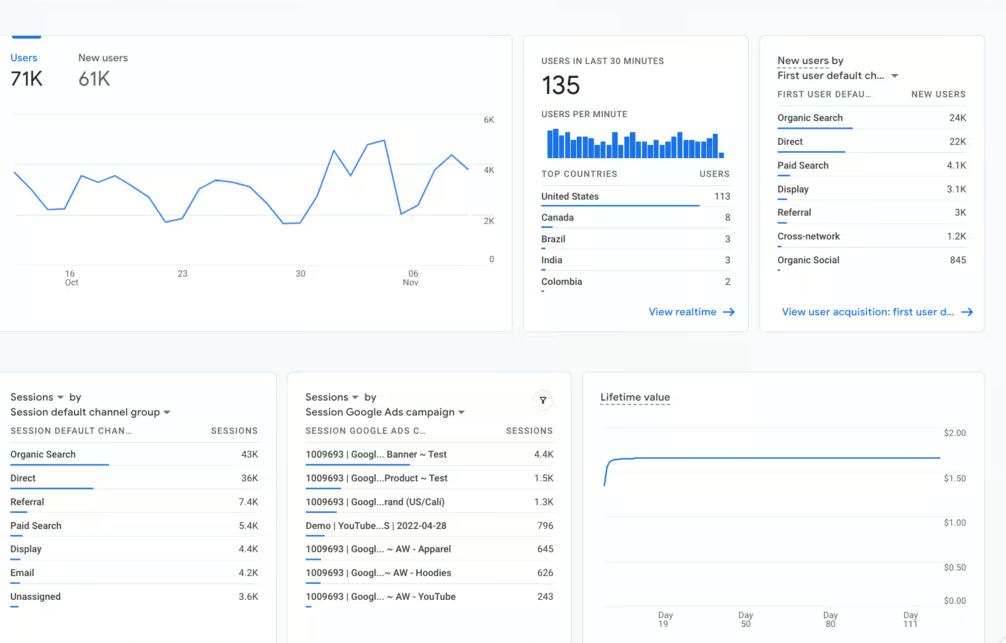
Here you will find all the estimates, like how many people visited, sessions, pageviews, channels, etc.
How To Measure Organic Traffic With Google Analytics 4
To view organic traffic metrics in Google Analytics 4,
- Navigate to Acquisition > Overview. This helps get an idea of all traffic channels sending users to your website.
- Then click on the Traffic Acquisition report. It shows performance by each default channel group (i.e., organic search, direct, referral, or paid).
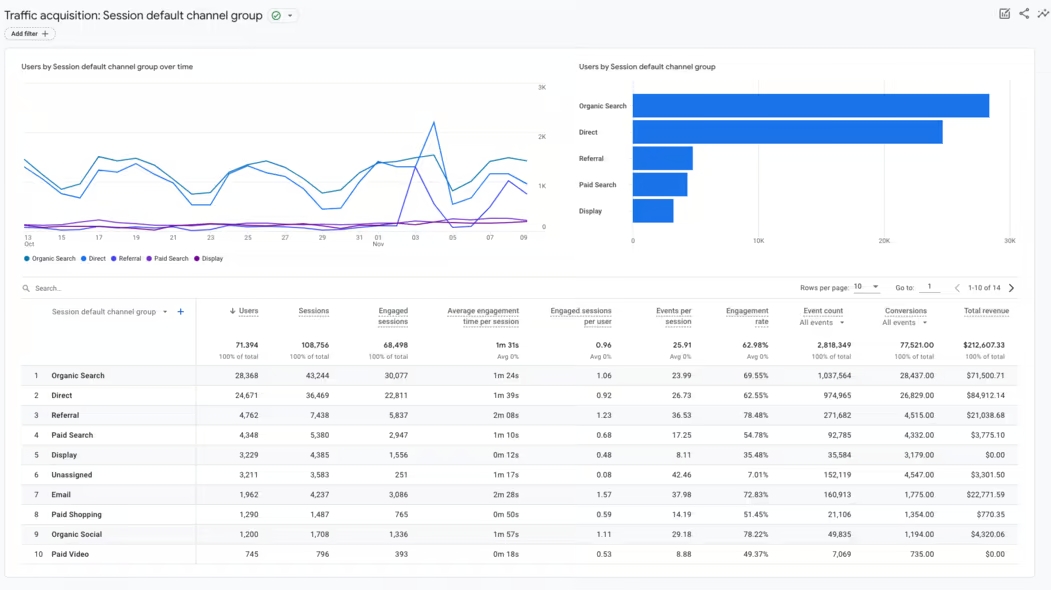
To see organic traffic metrics by page, navigate to either the Pages and Screens report or the Landing Pages report.
- Once you’ve chosen a report, apply a filter by clicking “Add filter.”
- In the filter category, set the Session default channel group to “organic” to see only visits coming from search engines.
These reports are helpful to see which pages attract the most organic visitors as well as how each traffic source allows your site to perform.
Read Also: How to Use Google Analytics 4 for Paid Search
Checking AI Referral Traffic in Google Analytics 4
Referral traffic means impressions that come to your website from other websites apart from search engines, such as a blog, review site, or social media post. These visits come in the form of referrals. Google Analytics differentiates between referrals and organic traffic to provide you with a clear view of how visitors come to your website. Here are some of the main types of traffic:
- Referrals: Visits that come from external sources without actually clicking your website.
- Organic traffic: Traffic that comes from search engines like Google.
- Direct: Visits that come through direct typing of URLs or a bookmark.
- AI Traffic: Visits that comes from AI recommendations lie mentions, citations or Chatbots like ChatGPT, Gemini, Perplexity AI. AI traffic also includes personal recommendations.
Tracking AI Referral Traffic With GA4
To check from which AI sources visitors are coming, you need to:
- Open the Google Analytics dashboard and go to traffic > “Traffic Acquisition Report”.
- Choose among the dimensions shown.
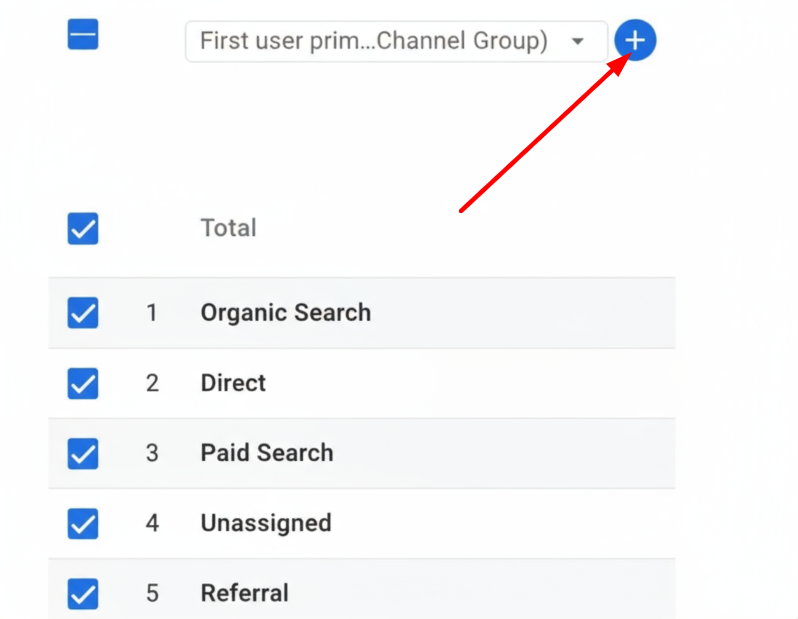
- Start by entering ‘session’ and then selecting ‘Session source’ from the displayed suggestions.
- Then, enter ‘referral’ in the search box to investigate the several referral sources.
When looking at AI-generated referrals, some sources you will easily get. You need to search for ‘.ai’ domains because AI tools are constantly evolving, particularly in recent sources.
According to a recent report by Semrush, ChatGPT referrals took a big jump from 10,000 domains per day in July 2024 to 30,000 by November 2024
Generate A Regex for AI Referral Traffic in GA4
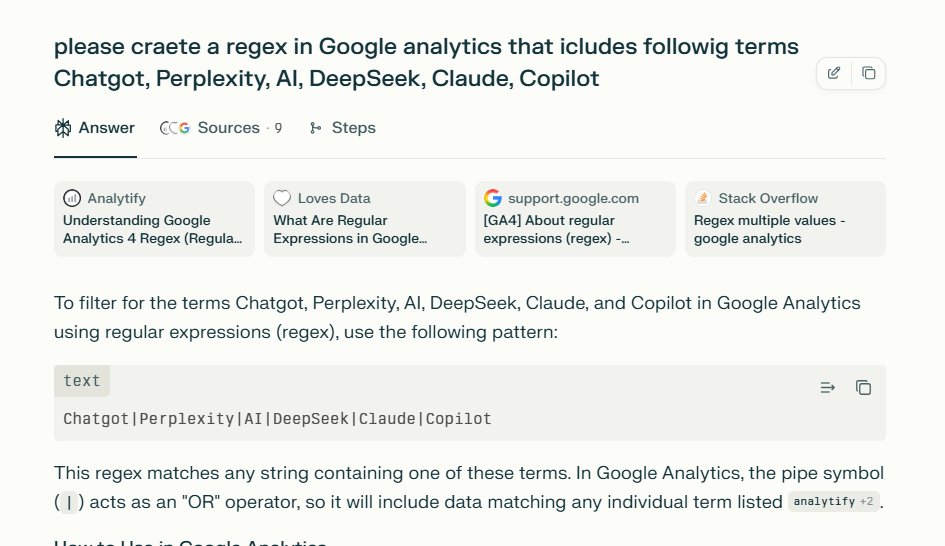
Once you know AI sources of traffic, it’s time to create a regex (general expression) to monitor those platforms in GA4. If you are not a coding expert. Ask any AI Chatbot to do it for you. You just need to use your regex to separate them with a vertical bar “|”. In programming language, it means “OR”
Let’s create a regex in Perplexity AI:
Creating A Custom Channel Group in GA4
Building a custom channel group is another great way to check website traffic in Google Analytics coming from AI sources. This helps you to pull all AI-related visits into one specific category, rather than digging through scattered referral sources. Here is what you can do:
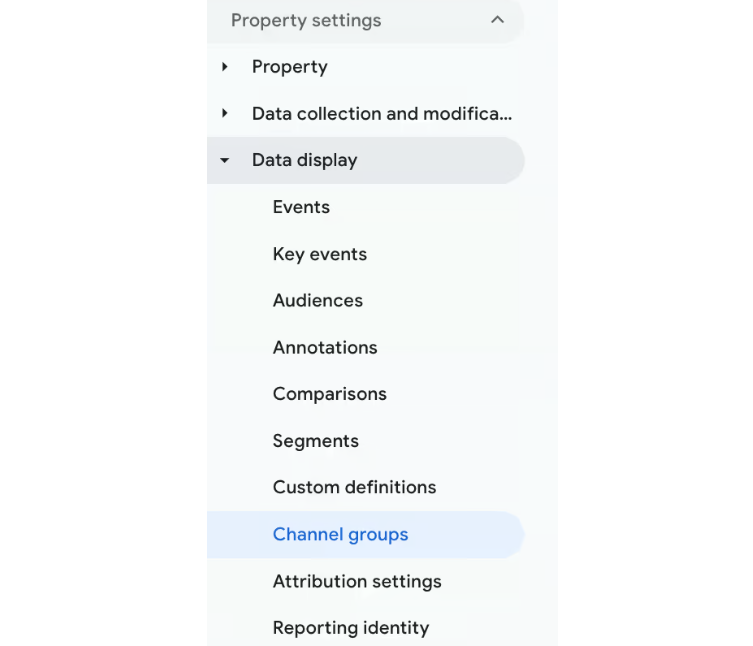
- Go to the Admin Panel and under the Data Menu, click on Channel groups.
- You can also add a new group by clicking on “Create a new channel group”
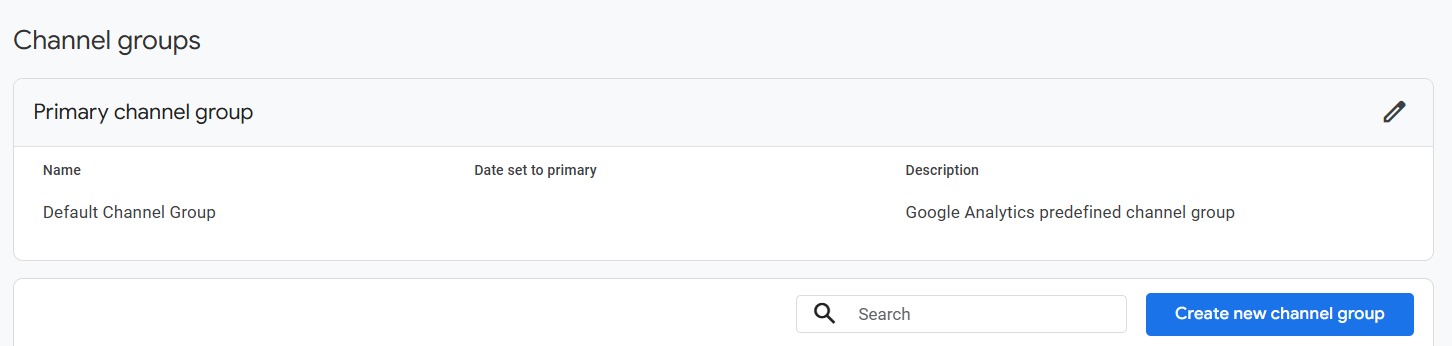
- You have to choose a name and a short description of the data it offers.
- Now you need to create a new channel. Click on Add new channel.
- Choose a meaningful name for your channel, e.g., “LLMs”.
After that, you must. Now you need to identify which visits belong in your new channel.
- Click on + Add condition group.
- From the selection dropdown, select Source and paste your regex expression for AI domains.
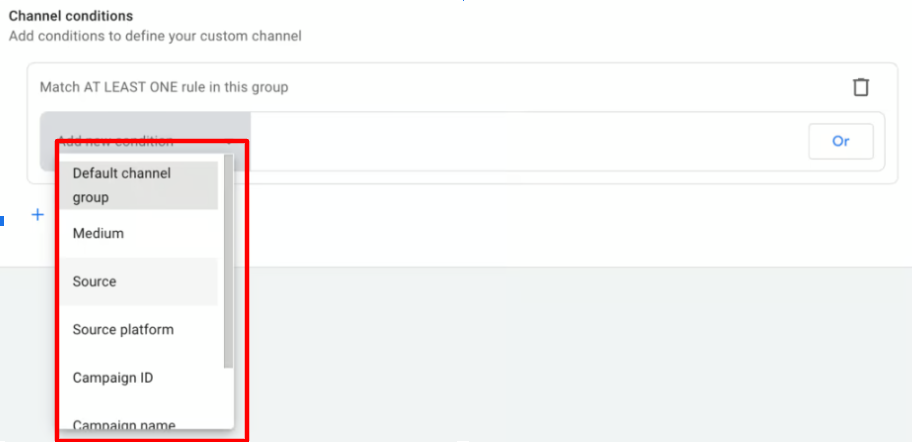
- To be thorough, also add another condition by clicking Or → Medium and paste the same regex.
- Once the conditions have been added, click Save channel.
Now your channel for AI traffic is integrated with GA4’s reporting engine.
Key Metrics To Check Traffic in Google Analytics 4
To understand traffic in Google Analytics, here are some of the important metrics you need to know:
- Sessions: Number of visits
- Users: Unique Visitors
- Page Views: Total pages viewed across sessions.
- Events: User actions like interactions.
- Average Engagement Rate: The Time users spend.
These metrics not only tell you how to check website traffic in Google Analytics, but also what that traffic means for your business goals.
Read Post: Google Analytics Session Timeout: A Complete Guide
Suggestions for Checking Website Traffic with GA4
- Explorations: You can build custom exploration reports in order to understand the data more deeply.
- Conversions Events: Set up specific actions you want to track, like sign-ups or purchases.
- Segment Traffic: See how traffic is performing by comparing SEO and paid traffic.
- Use UTM Parameters: To track campaigns in your emails and ads.
- Cohort Analysis: You can see how your user groups engaged in a set time frame.
Conclusion
Google Analytics (GA4) brings a new efficiency to existing GA models, making performance tracking more predictable and faster. It’s an important tool to understand which sources are driving valuable traffic to your website. From tracking audience engagement to conversions and monitoring user behavior across different channels, GA4 offers comprehensive insights that help maximize traffic value and improve user experience. Whether you want to measure website hits or track AI-driven referrals, GA4 provides you with complete access to the data.
As AI becomes a new source of discovery data, regularly tracking the website traffic in Google Analytics attracts high-quality traffic and strengthens your overall marketing efforts.
Website traffic can be unpredictable, especially with the rise of AI engines, so it’s time to revamp your strategies. It’s time to be AI-ready. Partner with a reliable AI SEO agency like ResultFirst. With years of experience in providing AI-driven SEO solutions, ResultFirst ensures your website is optimized for AI-driven search. Whether it’s about tracking traffic patterns with Google Analytics 4 or refining your content strategy, We helps you reach the right audience at the right time.
FAQ’s
WHAT TO READ NEXT
READY TO BUILD PREDICTABLE ORGANIC GROWTH?
We are the only TOP SEO services agency providing Real Results in a Real Performance model. We help growth hungry companies outperform their competition and achieve 300%+ growth in their digital marketing initiatives.
- San Jose, CA, 95120

- +1-888-512-1890

- sales@resultfirst.com

300K+
KEYWORDS RANKED
546M+
REVENUE GENERATED
18 Years
SOLVING COMPLEX SEO
150+
TEAM MEMBERS